For any support please don't hesitate to contact us at Support Center. We provide 13 hours real-time support for our customers.
We would like to thank you for choosing Bfolio - Personal Portfolio NextJs Template.
Requirements
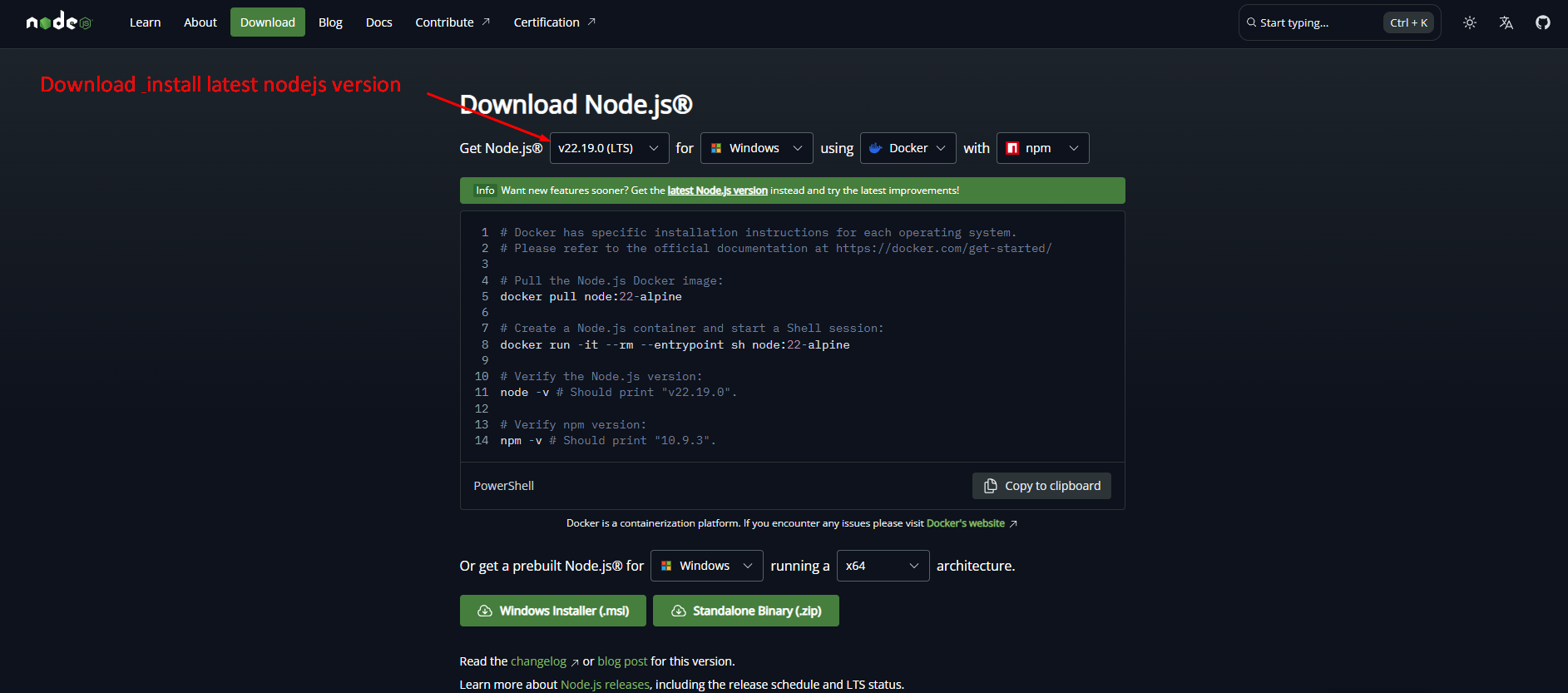
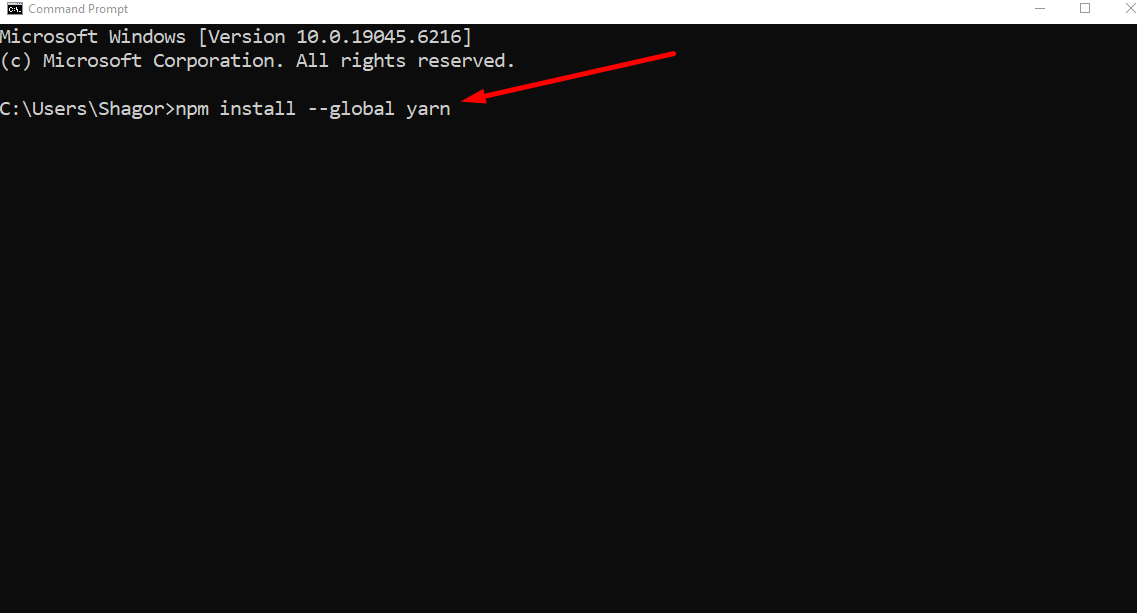
There are system requirements in order to install and setup Bfolio - Personal Portfolio NextJs Template and its components properly. Make sure that you are
installed node.js and
Yarn.
The template is easy to customize, ensuring a unique and professional look for your business. Get ahead of the competition and stand out in the market with our React Nextjs template for businesses.
Template Features - Latest Version
React JS
Next JS
Typescript
GSAP
Bootstrap v5.x
Font-awesome
Scroll Animation Included.
Split Text Animation Included.
Scroll Magic Animation Included.
Hover Effect Animation Included.
10+ Awesome Homepage
Responsive Design
Pixel Perfect Design
Clean Code & Unique Design
Easy to Customize
What's Included
After purchasing Bfolio Personal Portfolio NextJs Template on themeforest.net with your
Envato account, go to your Download page. You can choose to download Bfolio Personal Portfolio NextJs Template package which contains the following files:
The contents of the template package downloaded from ThemeForest
Bfolio - An NextJs Template file. this file you can edit and use for your business.
Documentation - This folder contains what you are reading now :)
React Installation
Please follow the instructions.
For local host: -
Open you command prompt
npm install or npm install --legacy-peer-deps
npm run dev (will start the dev server at
http://loaclhost:3000)
To deploy a Next.js application on Vercel, you can follow
these steps: -
Sign up for an account on Vercel if you don't have one
already.
Connect your GitHub, GitLab, or Bitbucket repository where
your Next.js application is hosted.
Import your repository on Vercel and select the Next.js
project to be deployed.
Vercel will automatically detect your Next.js application
and perform the necessary build and deployment steps.
Once the deployment is complete, you'll be able to access
your application using the URL provided by Vercel.
Template Site Setting
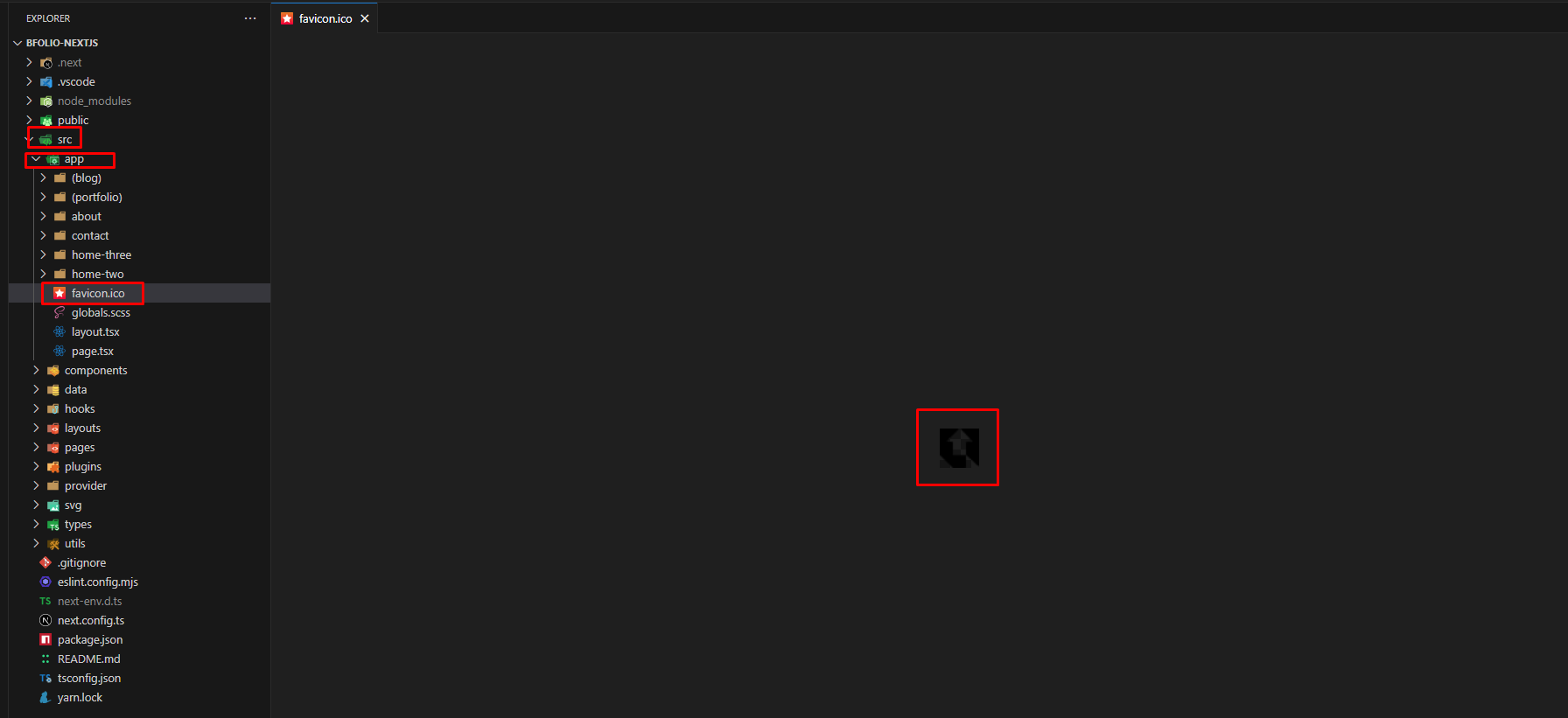
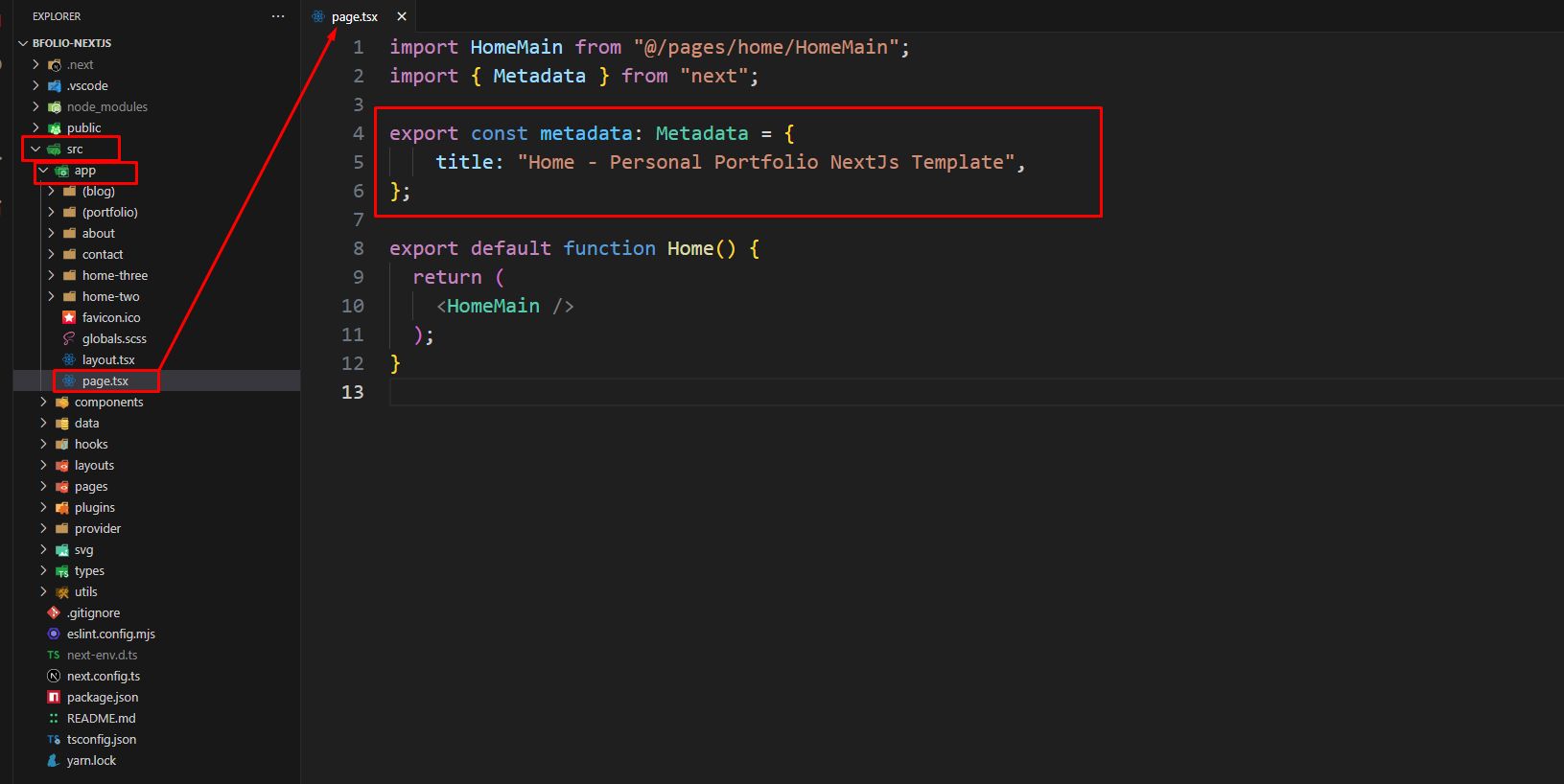
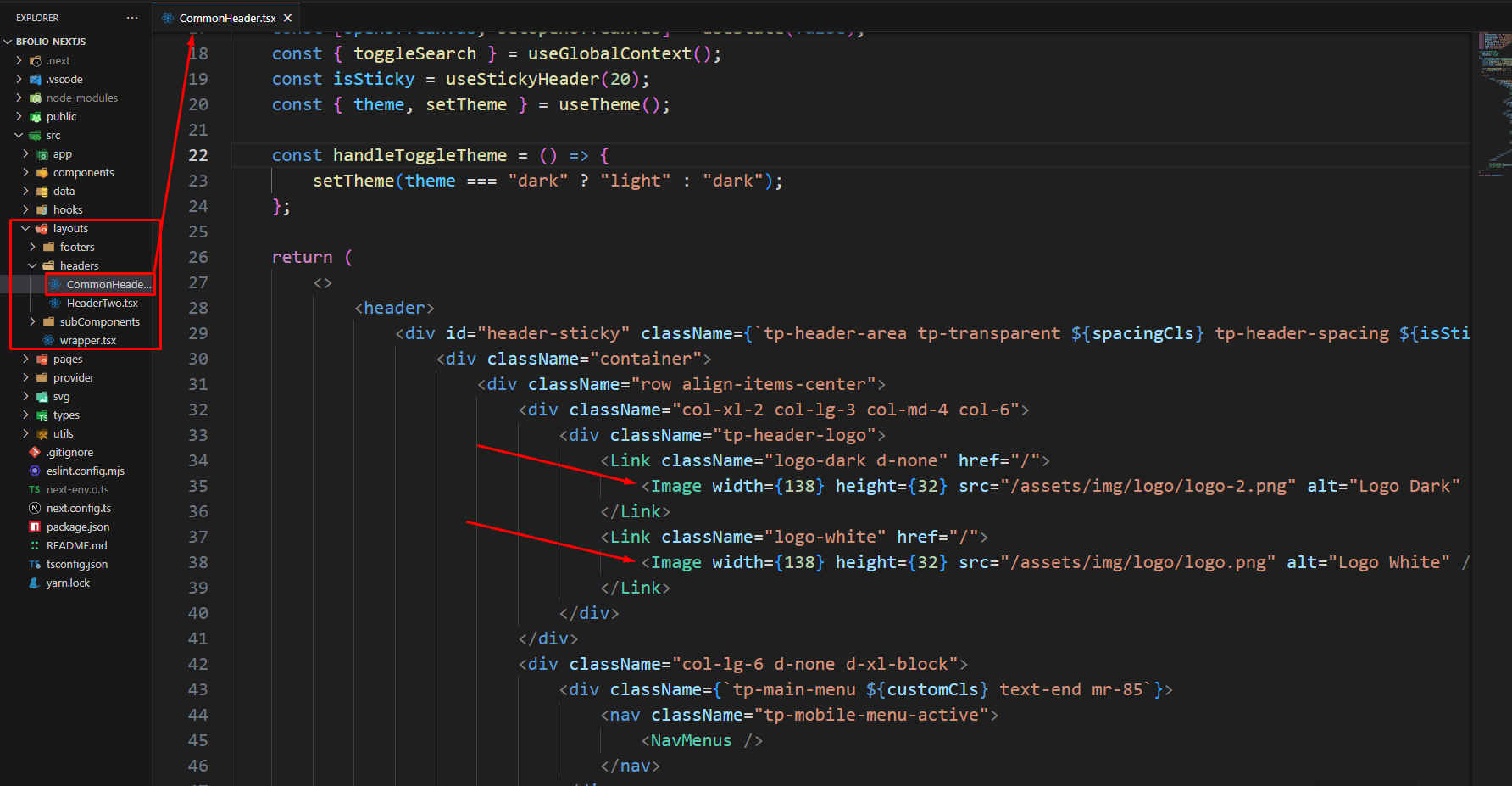
Change Site Title, Favicon and Page Title
To change your Site title and Favicon open the Personal portfolio in
your editor and go to the location by following screenshot which are given
bellow.
You can change favicon hereYou can change title hereYou can change Logo here
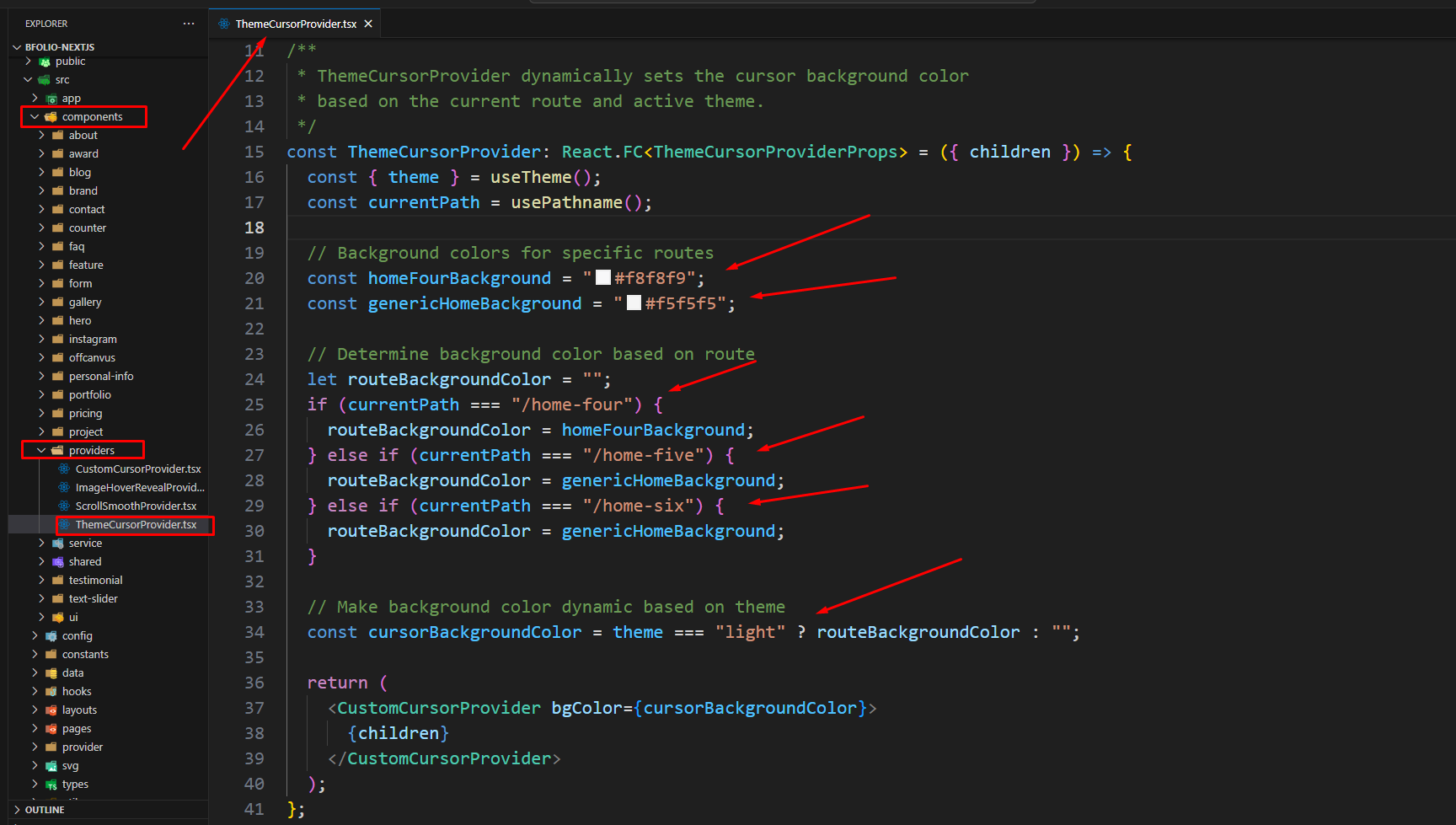
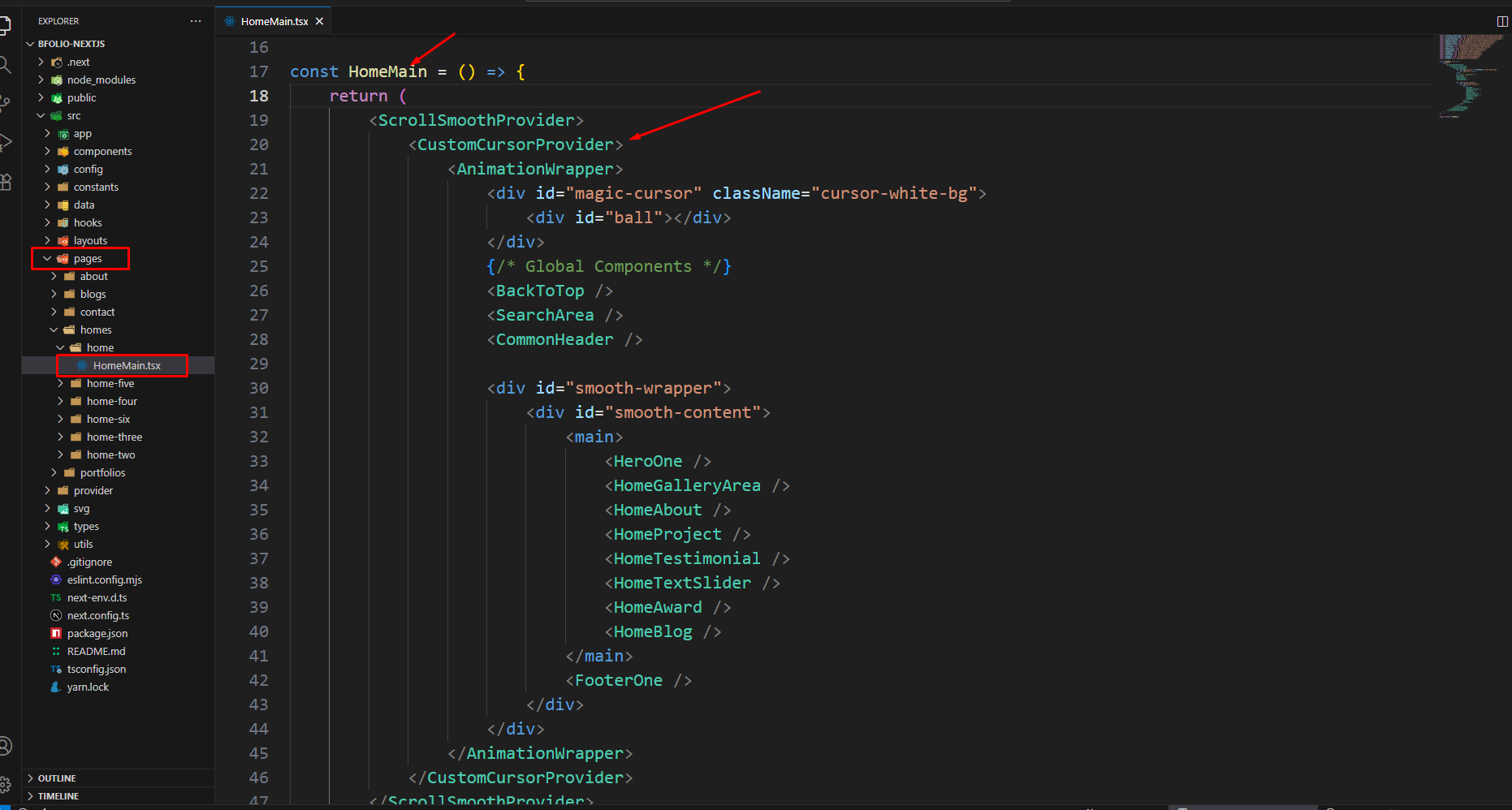
Example of changing the page background color dynamically based on the current route and theme.
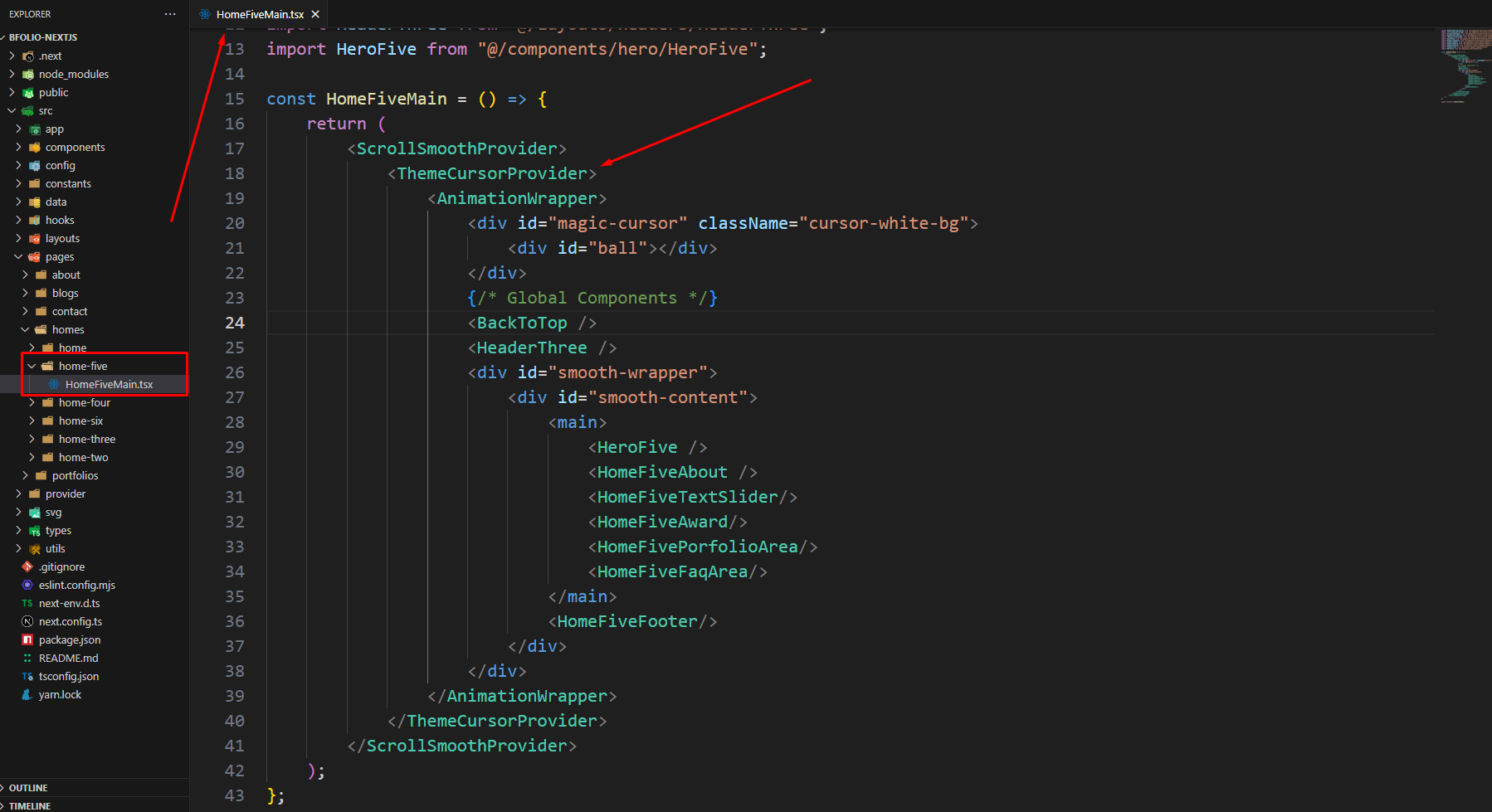
Example of using ThemeCursorProvider and CustomCursorProvider to dynamically manage the page background color — either globally based on the current route and theme, or directly within individual pages.
Customize Menu
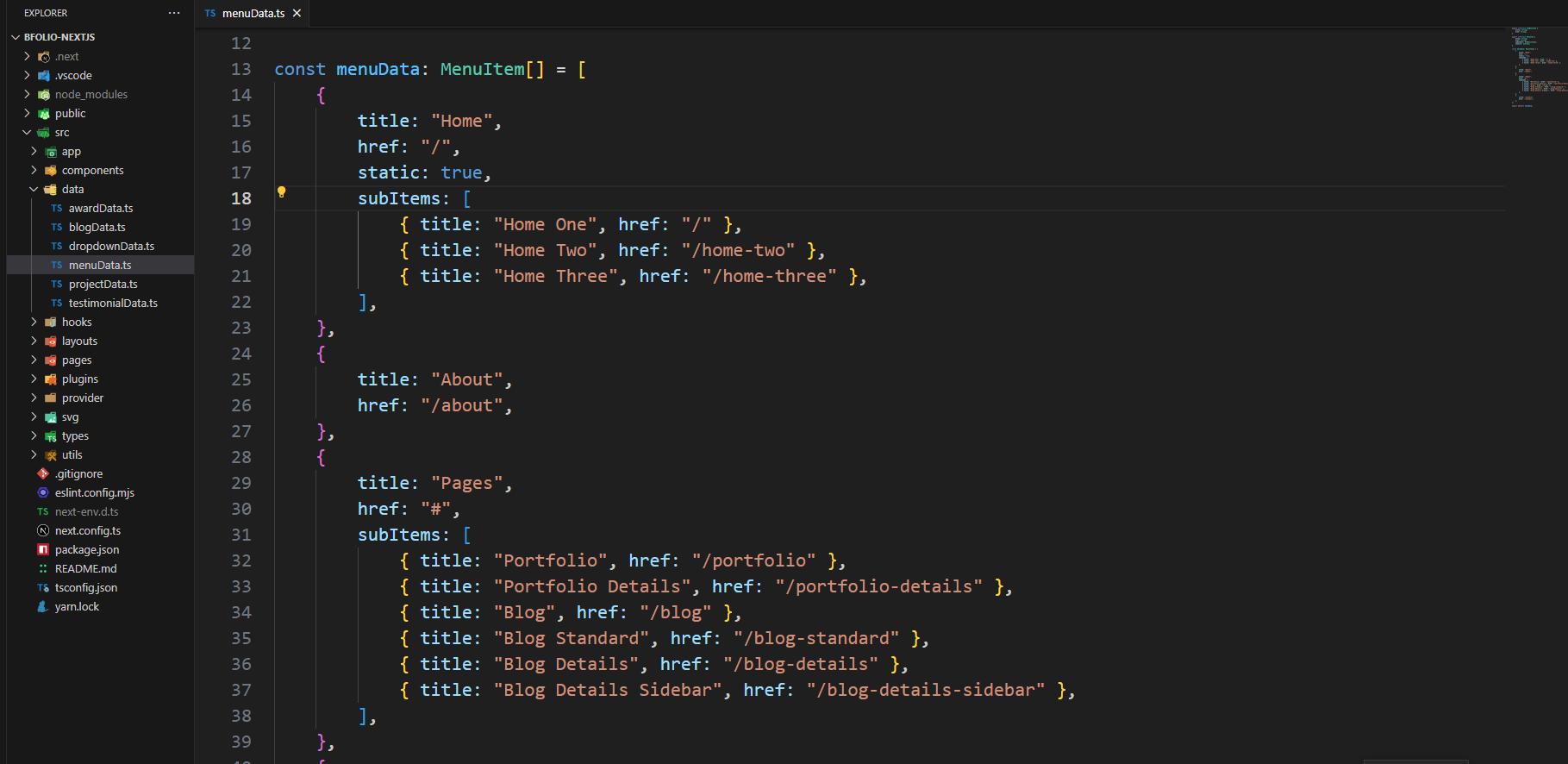
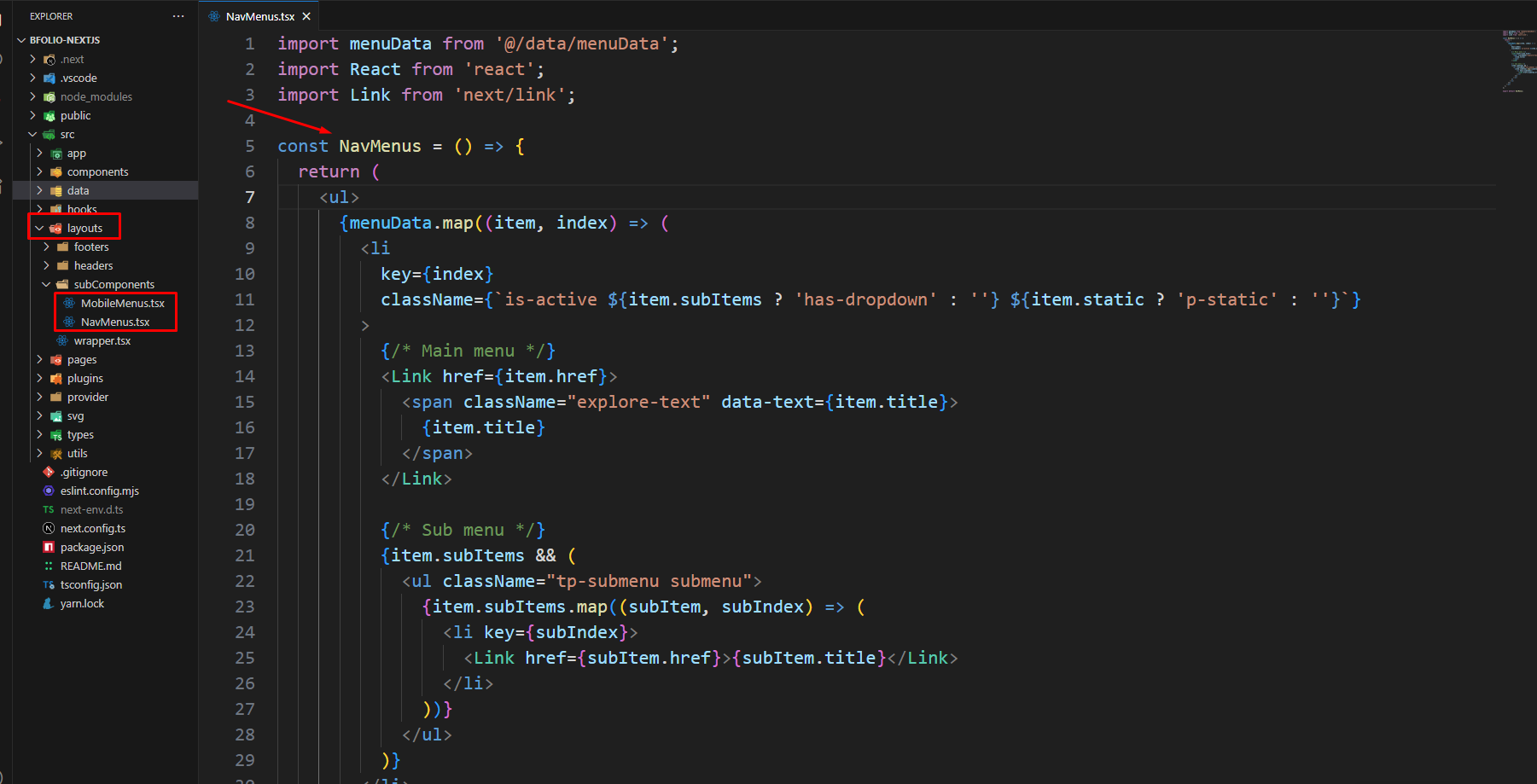
To customize menu do the following:
From the project folder go to src datamenuData.tsOpen the menu you want to
use
Then customize the menu
Customize the menu
Customize Footer
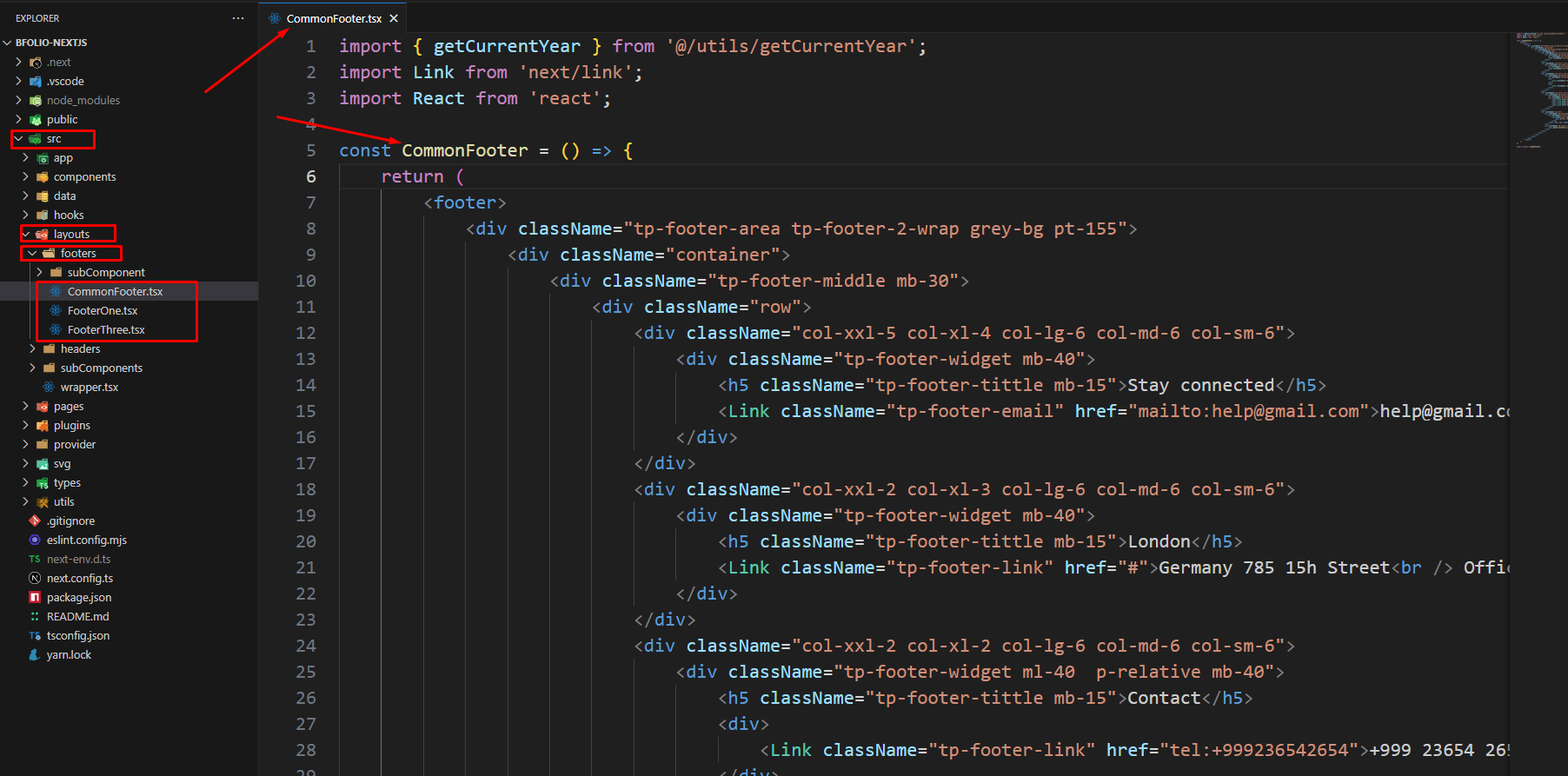
To customize footer data do the following:
From the project folder go to src layoutsFootersOpen the footer you
want to use
Then customize the footer
Customize the footer
GSAP Animation
How I Used Hook and Component
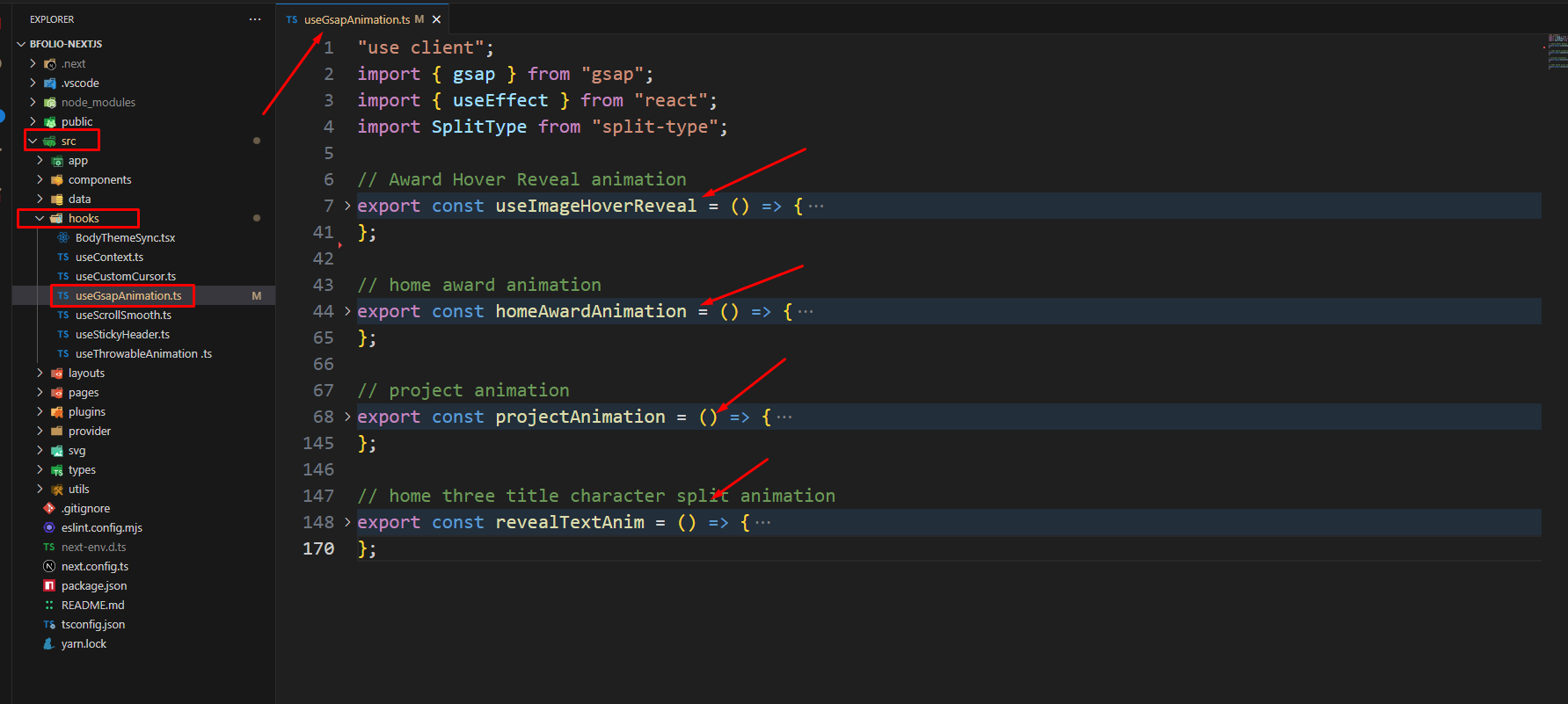
I implemented a reusable React hook to handle all GSAP animation logic (such as reveal, split text, and scroll-trigger effects) for a cleaner and more maintainable codebase.
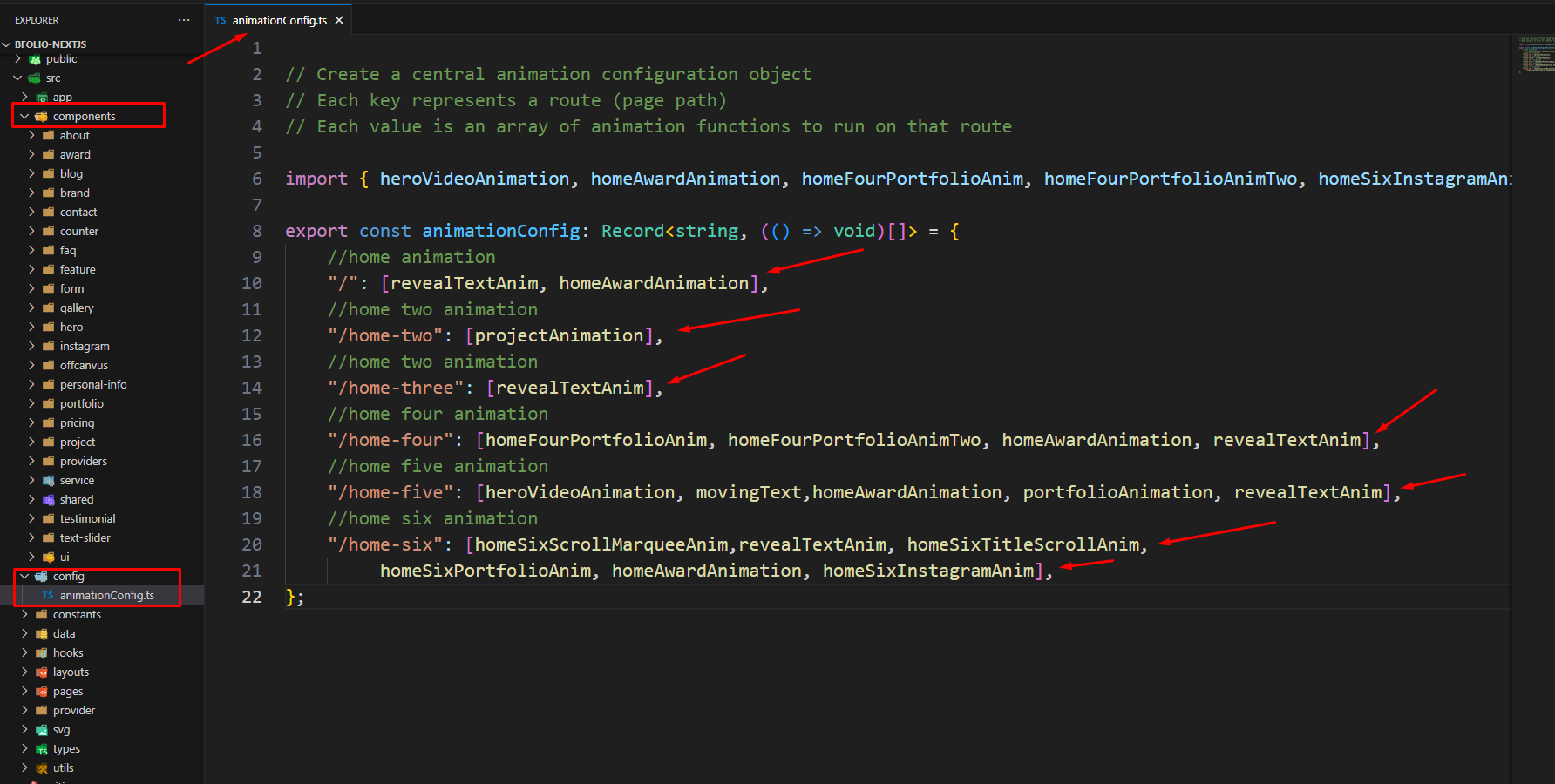
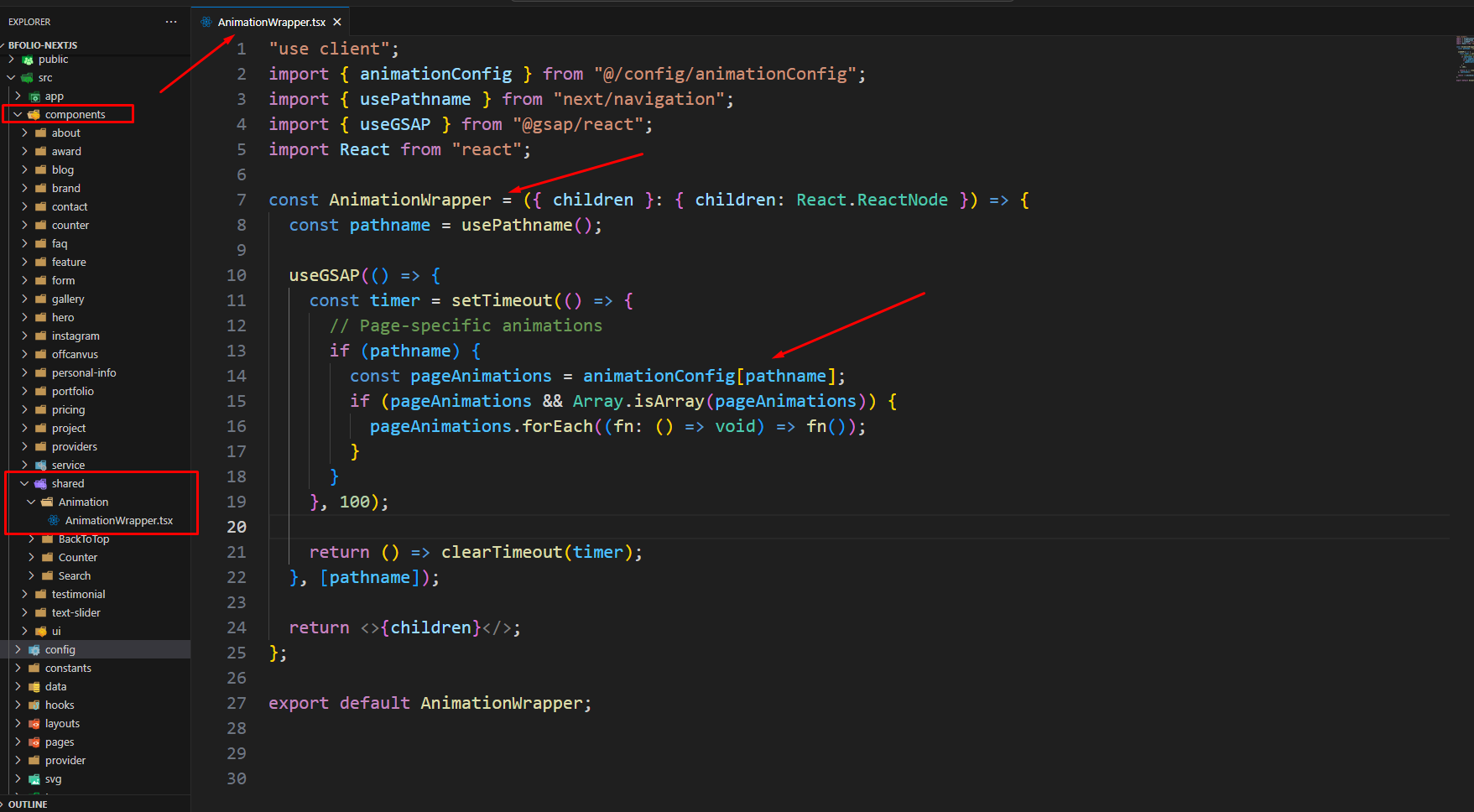
The AnimationWrapper component dynamically maps animations based on the current pathname using the centralized animationConfig.ts file.
This ensures that only the animations relevant to the active route are executed.
Additionally, the wrapper intelligently manages both SSR and CSR rendering contexts, preventing unnecessary client-side rendering and improving overall performance.
Example of creating animation with hook (fade animation, split text, scroll trigger setup)
Example of using route-based animations inside a component with useGSAP and a custom hook.
Example of implementing route-based animations in a React component using useGSAP with a custom hook for page-specific animation effects.
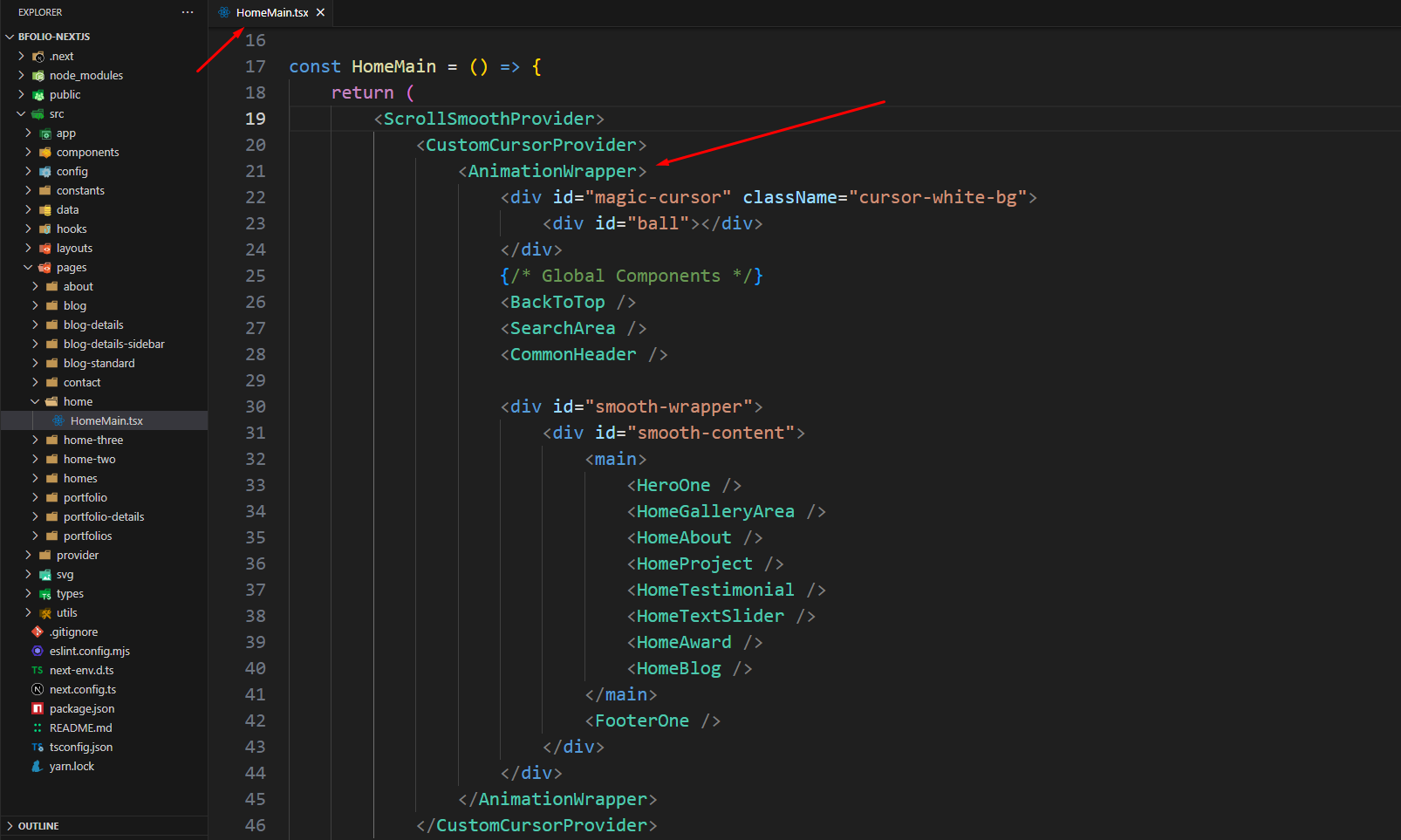
Example of using the animation wrapper that handles both global and page-specific GSAP animations using useGSAP and a custom hook
404
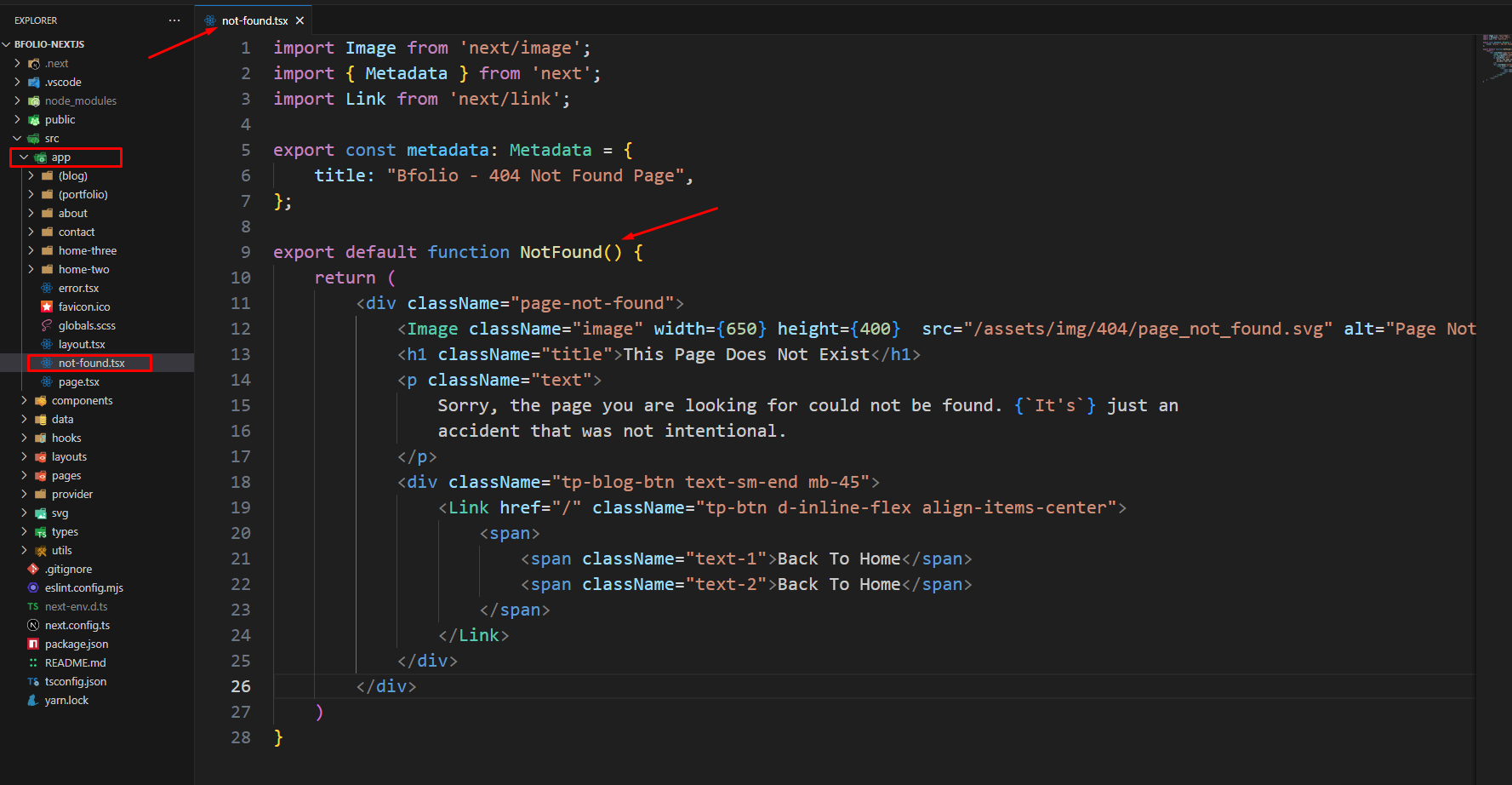
To change 404 and setting you can change by following this screenshot here.
From the project folder go to src appnot-found.tsxOpen the page you want to
use
Then customize the 404 data
Customize the 404
Customize Project Data
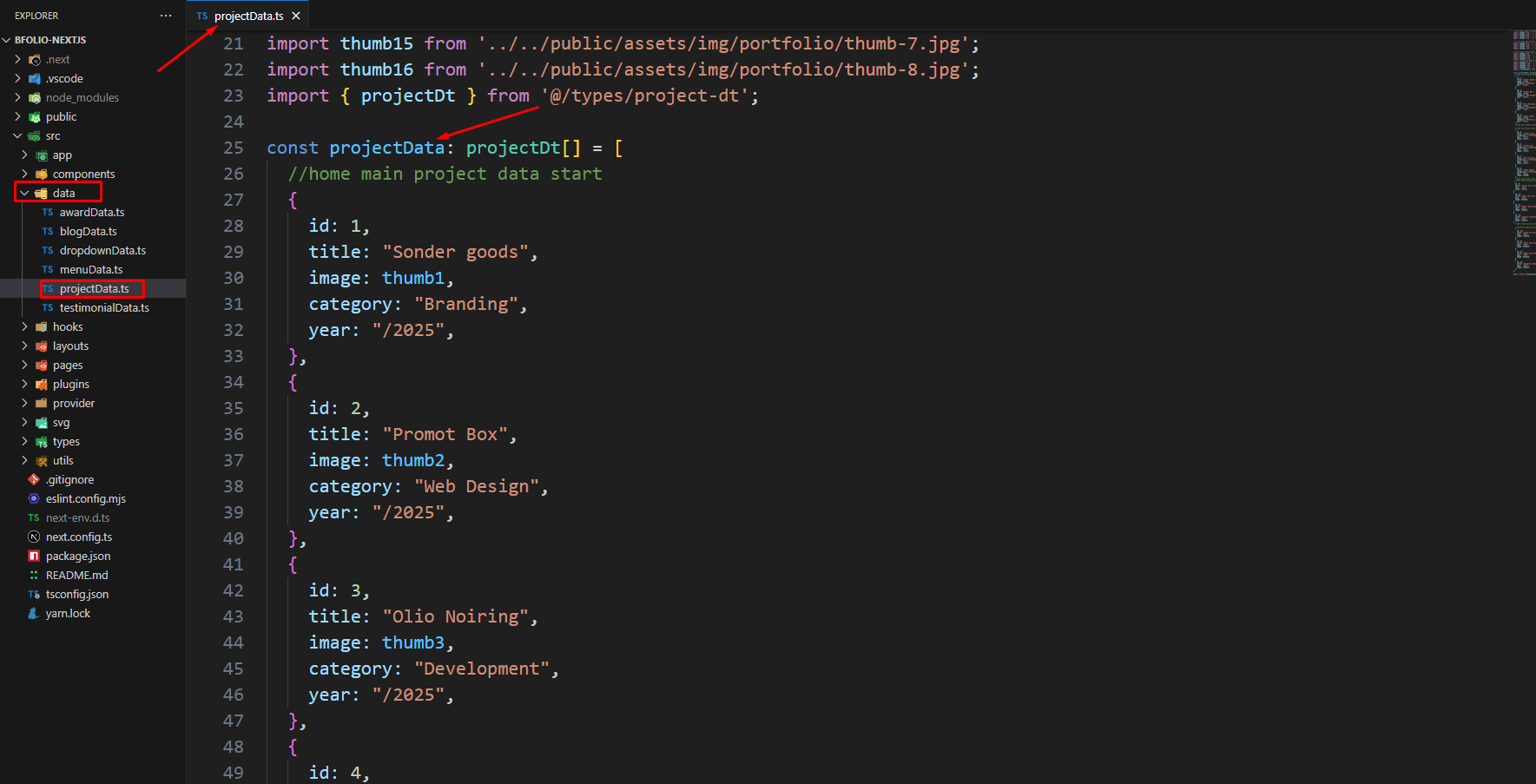
To change Project data and setting you can change by following this screenshot here.
From the project folder go to src dataprojectData.tsOpen the data you want to use
Then customize the project data
Customize the Project data
Customize blog Data
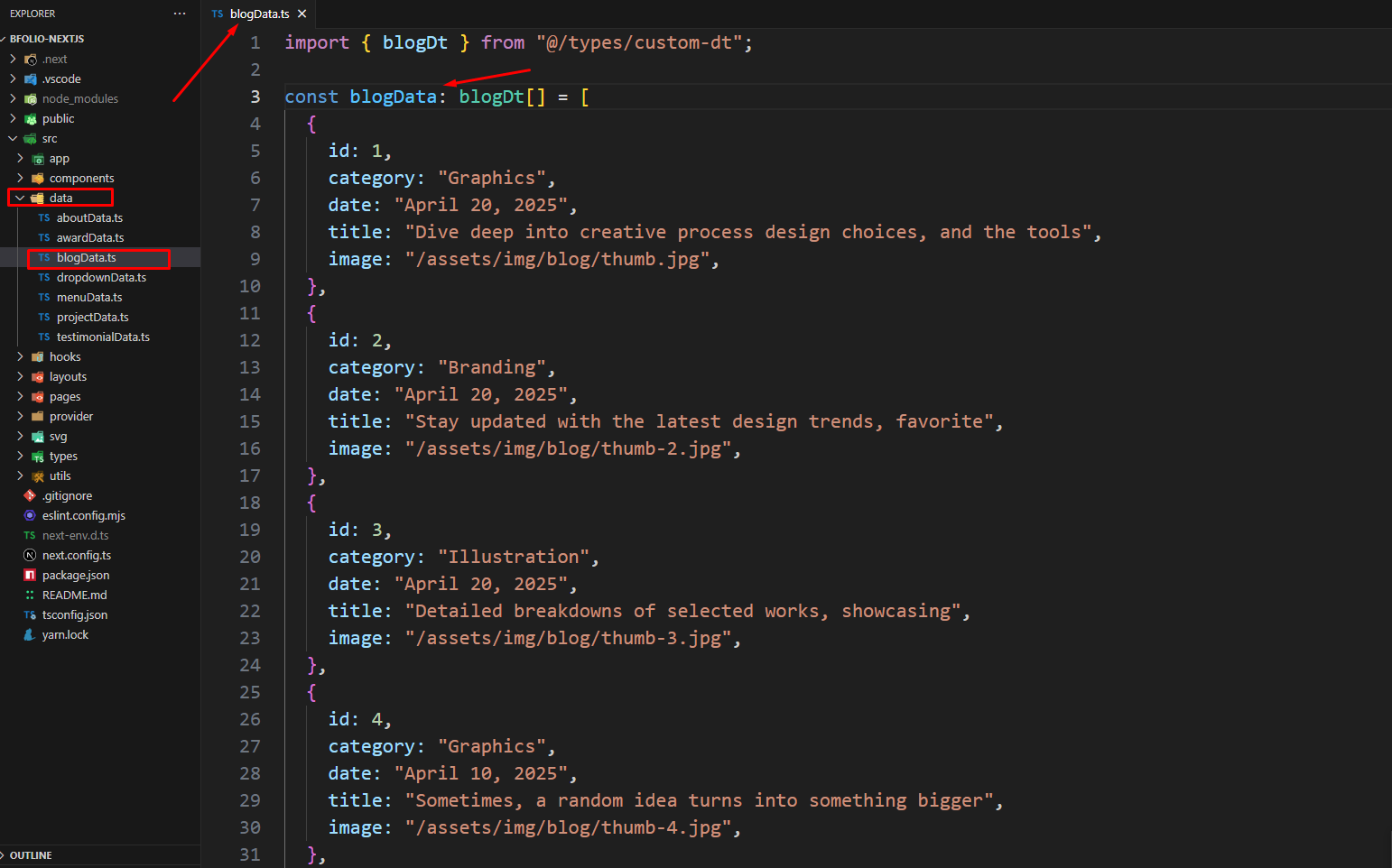
To change blog data and setting you can change by following this screenshot here.
From the project folder go to src datablogData.tsOpen the blog data you want to use
Then customize the blog data
Customize the blog data
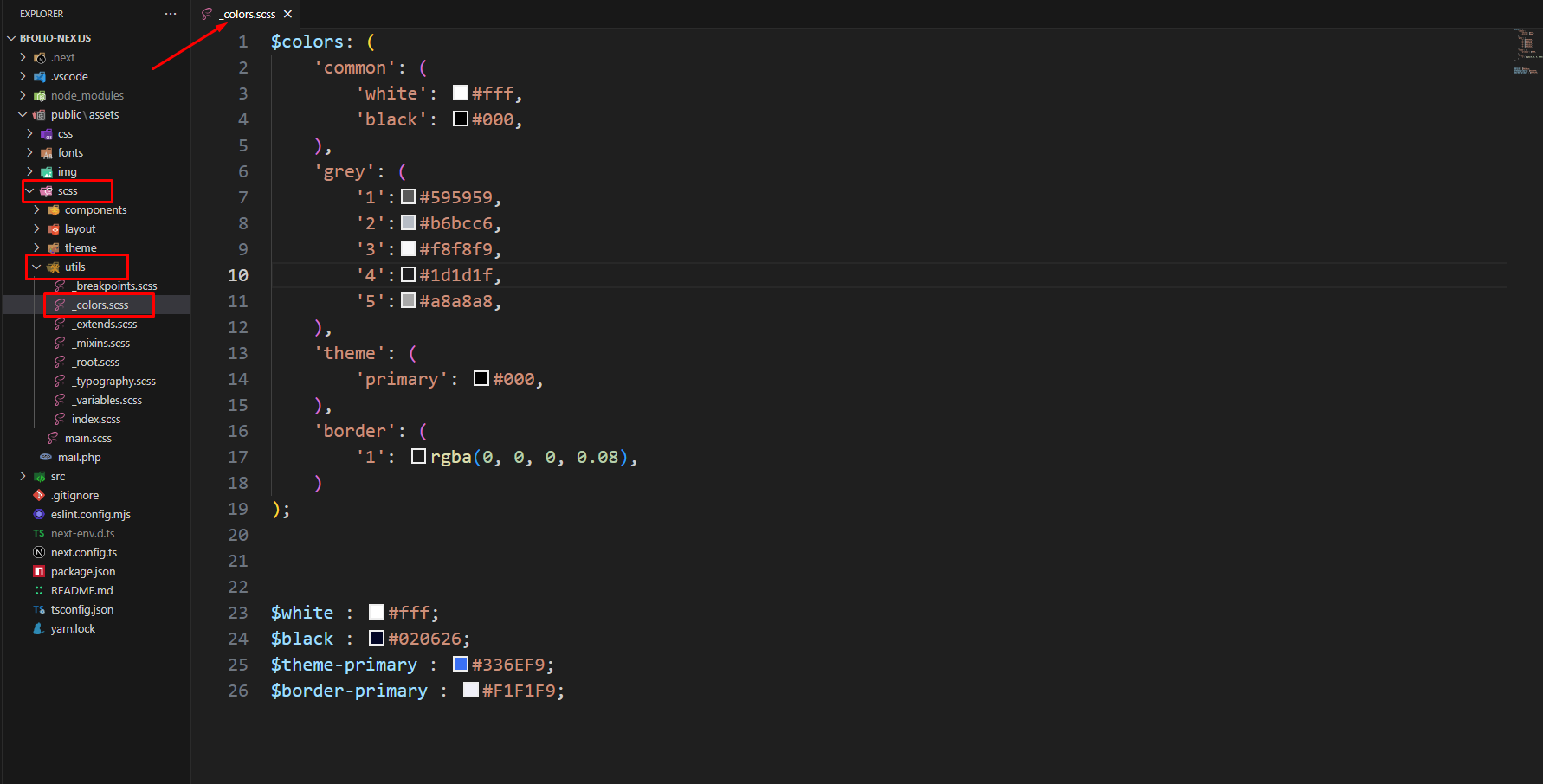
Changing template colors
Open the colors.scss file from public > assets > scss >
utils folder with a text-editor.
Change the right-side values of the variables to change any default colors of your
site.
Save your file.
Support
If you face any issue please contact us at
Support Ticket. We provide 15 hours real-time support for our customers.